
In the modern world saturated with technology, televisions have become complex multimedia portals. Video game enthusiasts, movie buffs, and streaming fans often want to skip the home menus and go straight to their chosen content. Setting up a TV to power on to the HDMI input may seem daunting, but it’s actually a fairly simple procedure. This optimization saves time and enhances the user experience. Here’s a practical guide to adjust your screen so that it meets your preferences the moment you press the power button.
Setting Up Your TV to Start on HDMI
Let’s go through the process to configure your TV so that it starts directly on the HDMI input of your choice. The first step is to connect your device, whether it’s a computer, a gaming console, or a Blu-ray player, to the TV using a HDMI cable. Make sure to properly insert one end of the cable into the HDMI port of your device and the other into one of the HDMI ports on your TV.
Once you’ve connected the cable, turn on your TV and grab the remote control. Access the settings of your screen by navigating through the menus. The process may vary depending on whether you have a plasma screen, a Panasonic TV, or a Samsung. Select the HDMI input corresponding to the port where the cable is plugged in. On some models, like plasma screens, it’s possible to save the HDMI channel so that the TV automatically turns on to it next time.
For owners of older models, the task may prove more challenging. Some older TVs require a specific procedure to set the HDMI input. This may involve navigating to a so-called ‘hotel mode’, which allows you to customize the startup settings. Refer to your TV’s user manual or follow the online instructions dedicated to your model to complete this setup.
To specifically address the question of how to power on your TV to your preferred HDMI input, be sure to save the changes made in the settings. Once this save is done, test the configuration by turning your TV off and then back on. If everything is in order, your device should power on directly to the content transmitted via the HDMI cable, giving you immediate and direct access to your favorite entertainment.
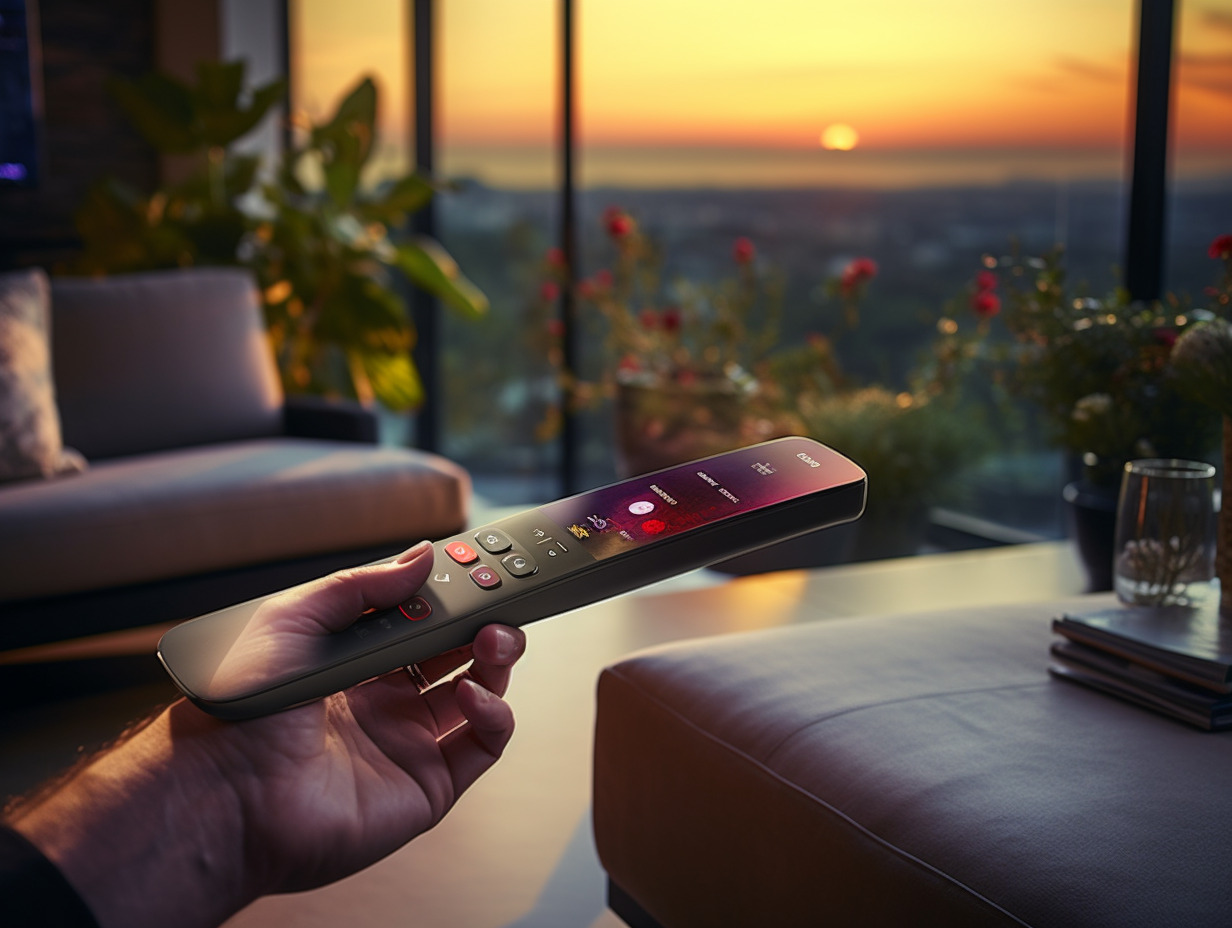
The Benefits of Using CEC to Simplify Your Experience
The Consumer Electronics Control (CEC) feature offers seamless integration between devices connected via HDMI. Simplify your experience by allowing a single remote to manage multiple devices. Activate the CEC function in your TV settings and discover the convenience of controlling, for example, a soundbar, a Blu-ray player, or an Apple TV without having to juggle between different remotes. The ease of use transcends brands, with giants like Sony and Apple adopting this technology to make their devices more user-friendly.
The Audio Return Channel (ARC) feature, closely related to CEC, optimizes the audio experience by allowing your TV to send sound to a home theater system or soundbar without additional audio cables. For audiovisual enthusiasts, ARC is a boon, facilitating high-quality sound reception, including support for advanced formats like Dolby Atmos, through a single HDMI cable. Ensure that your equipment is ARC compatible and that the CEC function is enabled to fully benefit from this technological synergy.
Centralizing device management through CEC not only simplifies daily use but also contributes to energy savings. Connected devices can turn off and on together, eliminating the need to keep unused equipment active. This interactivity between devices, supported by companies like Google and Apple, enhances an intuitive user experience in the home entertainment ecosystem. Take control of your multimedia environment with the CEC function and revolutionize your interaction with technology.